Gumband OS Monitor
Overview
The Gumband OS Monitor is an executable program that runs on a host operating system for high-level system monitoring via Gumband. By launching the OS Monitor upon system boot, various statuses can be tracked and some high level controls can be triggered remotely via the Gumband UI.
Installation
See the documentation and OS Monitor executable download here.
Setup Mode
After the OS Monitor is installed initially, it can be reconfigured by entering “Setup Mode”, which is activated using the “Toggle Setup Mode” control. While in "Setup Mode", three new settings will appear:
- Set Exhibit ID
- Set Exhibit Token
- Set Remote Access Info
The "Set Exhibit ID" and "Set Exhibit Token" settings are used to move the OS Monitor from one exhibit instance to another within the Gumband UI. The "Set Remote Access Info" setting is used to update the "Remote Access Info" status. Updating any of these settings will change the .env file for the OS Monitor, so the next time it starts up it will use these new values. The process for updating these values is:
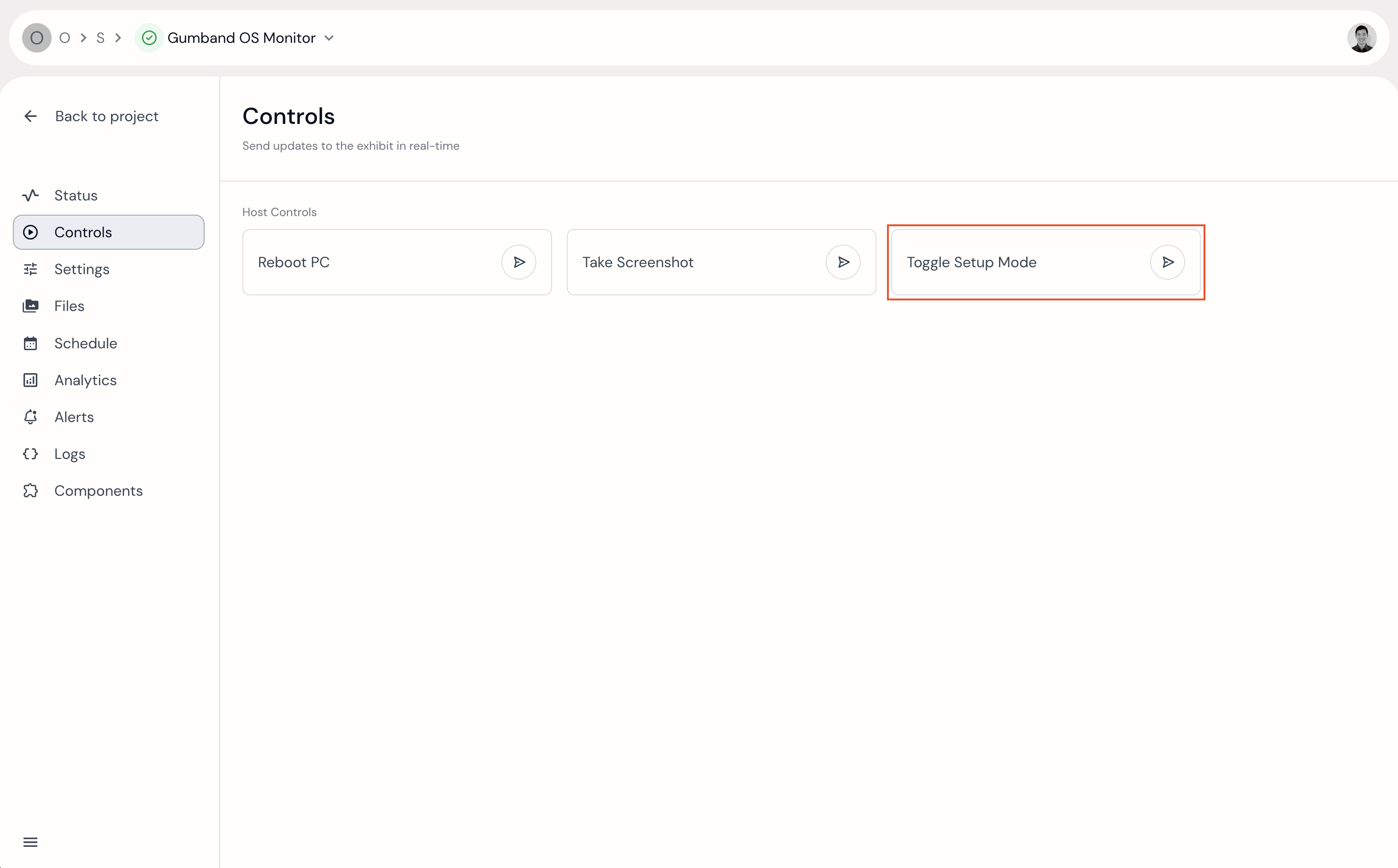 Click the "Toggle Setup Mode" control in Gumband to put the OS Monitor in Setup Mode.
 Edit the Setup Mode settings and save them.
Click the "Toggle Setup Mode" control again to take the OS Monitor out of Setup Mode. You should notice the Setup Mode settings disappear.
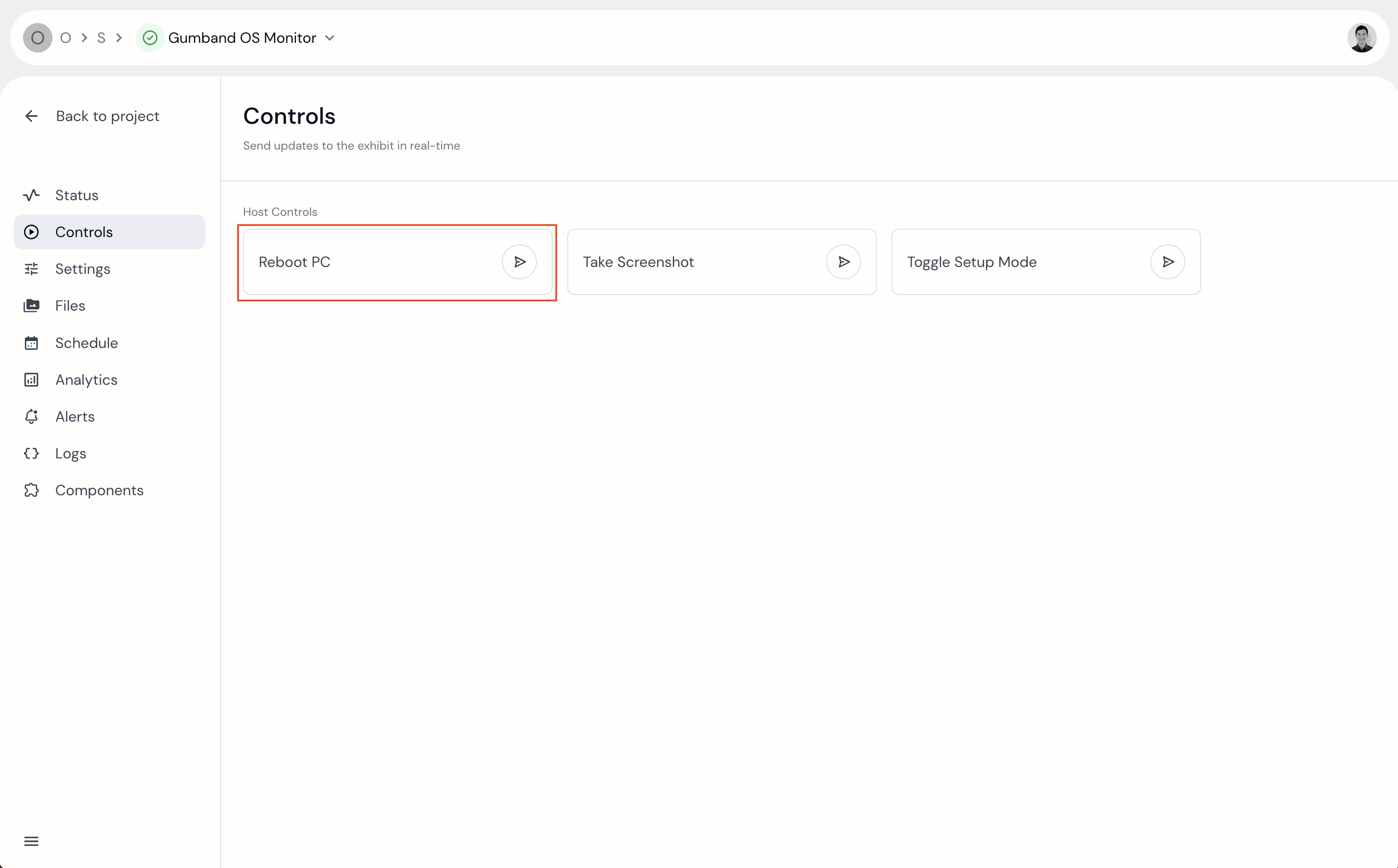 Restart the PC using the "Reboot PC" control to restart the OS Monitor.
Make sure you set the correct Exhibit ID and Token. If they are not correct, the OS Monitor will lack the necessary credentials to connect to Gumband and remote access to the PC will be needed to resolve this manually (manually editing the .env file).
Statuses
| status | description |
|---|---|
| OS Monitor Version | The current version of the Gumband OS Monitor running on the host machine. |
| MAC Addresses | The MAC Addresses of each network adapter on the PC (Windows only). |
| Serial Number | The serial number of the PC if it has one (Windows only) |
| Remote Access Info | A custom string that describes how to remotely access the machine, such as a TeamViewer ID. This value can be set when the OS Monitor is in “Setup Mode”. |
| OS Platform | The operating system of the host machine. |
| Last Startup | The last time the host machine was booted. |
| Exhibit Host Uptime | The time that the host machine has been online. |
| CPU Usage | CPU usage |
| Memory Usage | RAM memory usage |
| Disk Usage | Harddrive disk usage |
| Total System Memory | Total RAM available on the host machine |
| Harddrive Capacity | Total harddrive disk capacity |
| Connected Displays | The displays currently connected to the host machine (Currently only available on Linux and Windows) |
| Number of Displays | The number of displays connected to the host machine (Currently only available on Linux and Windows) |
| Connected USB Devices | The USB devices currently connected to the host machine (Currently only available on Linux and Windows) |
| Number of USB Devices | The number of USB devices currently connected to the host machine (Currently only available on Linux and Windows) |
Controls
| control | description |
|---|---|
| Reboot PC | Triggers a reboot of the host machine via a terminal command. |
| Take Screenshot | Takes a screenshot of whatever is showing on the host machine displays. These screenshots are uploaded to Gumband and can be seen in the Files tab of the UI. |
| Toggle Setup Mode | Toggles the setup mode on/off. |
Settings
| setting | description |
|---|---|
| Status Update Interval | This is how often the OS Monitor queries the host machine for its statuses. Default is 15 seconds. |
| Take Screenshot Interval | This is how often the OS Monitor triggers a screenshot to be taken. Default is never. |
| Exhibit ID | The Exhibit ID can be set using this setting while the OS Monitor is in "Setup Mode". |
| Exhibit Token | The Exhibit Auth Token can be set using this setting while the OS Monitor is in "Setup Mode". |
| Set Remote Access Info | The "Remote Access Info" status is changed using this setting while the OS Monitor is in "Setup Mode". |